Views
Calendar
The Runtool calendar. Plan, move, and complete workouts week by week.
The Calendar is the planning canvas. Weeks scroll continuously. Plan next week, review last month, and keep the whole picture in one view.
Planning workouts
Click a day and type the workout the way you'd say it: 10km easy, 8x1km / 200m, 45min easy + 6x20s strides. Press Enter and it's on the day, structured, with target paces from the athlete's zones. The line stays open for the next one, because a day can hold more than one workout. See Workouts for everything a workout can hold.
Esc throws away what you were typing. Leaving the line, by clicking elsewhere or pressing Tab to move on to the next day, keeps it, and ⌘Z takes it back.
The dashed + slot under a day's date opens the full workout composer instead, for the things a line can't say: a strength session, a race, a cross-training day, a time of day, a description. Click the slot to pick a workout, click anywhere else in the day to type one. A + sits beside the open line too, and takes whatever you've typed with it.
On a phone or tablet the slot is simply always there, since there's no cursor to reveal it with, and tapping the day itself opens the line, the same as a click. Where the calendar is a list rather than a grid, the composer's door is the + beside the date.
A line Runtool can't read at all, like Physio or Gym with the team, is kept as a workout carrying exactly those words, for you to fix or leave as a note. A line it reads perfectly but that can't be right, like 20x400min at 134 hours of running, stays in the box and says so rather than landing.
Writing a week from the keyboard
Click a day, or Tab into the calendar, and that day is the one you're working on. The arrow keys walk from day to day, left and right by a day, up and down by a week, and just start typing to write on the day you land on.
⌘V (Ctrl+V on Windows) puts the clipboard down on that day. With no day picked out, ⌘V arms a paste that follows the cursor instead. See below.
Move a planned workout by dragging it to another day, or by clicking its date. Hold Alt while dragging to leave the original where it is and drop a copy on the new day. Plans change. The calendar is built for it.
Copying workouts and weeks
Right-click a workout and choose Copy workout. The copy follows your cursor. Click the day you want it on to place it, or press Esc to drop it. Or right-click the day you want it on and choose Paste: with something on the clipboard, every day offers it.
To copy more than one, ⌘-click (Ctrl-click on Windows) each workout, or Shift-click to take a range, then use Copy in the bar that appears at the bottom of the calendar. Several workouts keep the gaps between their days: two workouts three days apart land three days apart.
To copy a whole week, right-click the week header and choose Copy week, or right-click any workout in it and choose Select this week. A week lands weekday on weekday: Tuesday's session on Tuesday, the long run on Sunday, whichever day of the target week you click.
⌘C and ⌘V (Ctrl+C / Ctrl+V on Windows) do the same from the keyboard. What you copied stays on the clipboard after you place it, so you can paste the same week down a block without copying again.
Copy on a workout's own page does the same thing: it loads the clipboard, and the paste picks the day. One copy, one clipboard, wherever you took it from.
A copy is a plan, not a record. It carries the workout's name, description, structure, and category, and nothing about how a past run went. Pasting adds to the day. Whatever the day already holds stays.
Copying a run that was never planned, one that arrived from your watch, gives you a plan of that run: a block for each segment the watch recorded, at the pace it was run, over rounded distances. Two 394 m reps on a track come back as the 400s they were. Edit it like any other plan.
Copies also cross athletes: copy on one athlete's calendar, open another's, and paste. Workouts with zone-based paces need pace zones on the athlete receiving them; without zones the paste is refused rather than landing with invented paces.
They cross into Templates too. Copy a week here, open a template, and right-click the day you want it on, or copy a week out of a template and paste it here. It is the same clipboard and the same gesture in both directions.
A copy also lands on your system clipboard as plain text, so a week pastes into an email or a message as it reads on the calendar. That works the other way as well: copy a plan out of a spreadsheet, click a day, and press ⌘V. Each line has to name its day (Mon, Tue, or Day 1); tabs, colons and dashes all separate the day from the workout. A line Runtool can't read is kept as a workout carrying exactly what you wrote, for you to fix rather than retype.
Undoing a change
⌘Z (Ctrl+Z on Windows) takes back the last plan change on the calendar: a paste, a workout you created or deleted, a move, a reorder. ⌘⇧Z puts it back. Undo belongs to the calendar in front of you, so it never reaches a change you made somewhere else.
If the workout an undo would touch has moved in the meantime (you changed it in another tab, or a sync did), the undo stands down and says so rather than acting on something that is no longer there.
Applying a template is not on this stack. It writes to calendars you aren't looking at, so it is taken back where you can see it: open the athlete and delete what landed.
Week at a glance
Each week header summarises the week: planned and completed volume, session count, and load. A weekly trend strip charts recent weeks against each other, so a building block or a recovery week is visible at a glance.
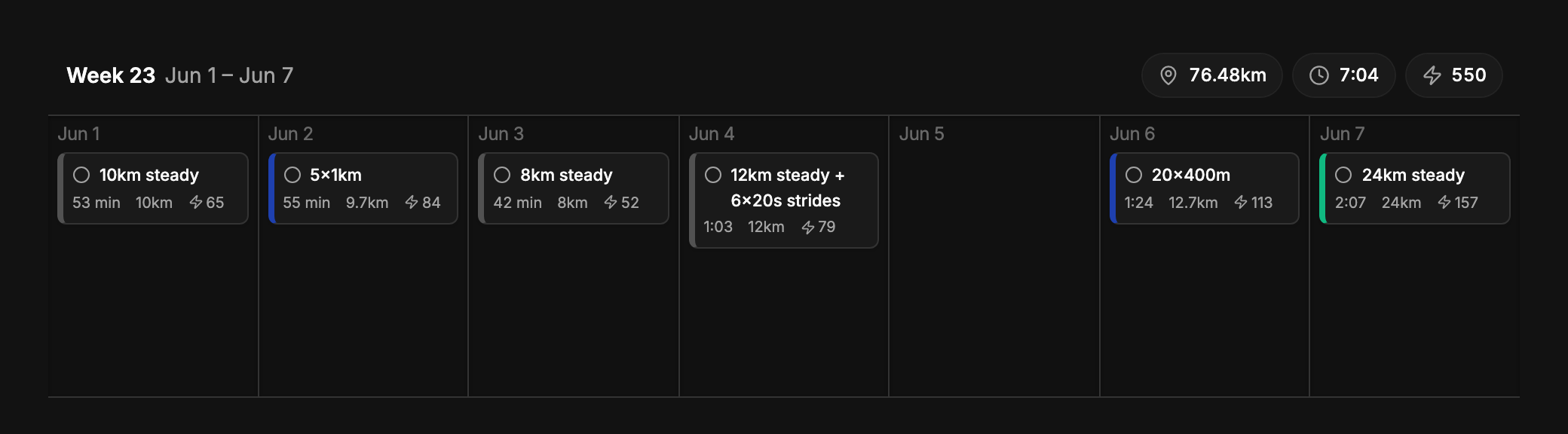
A chip's left edge carries the session's category, so the shape of a week reads before any of the numbers do: where the quality sits, which day is long, where the rest falls.
The first day of the week is your own preference, not the athlete's, so every calendar you open starts its weeks on the same day. Change it in Settings → Preferences. See Athlete settings.
Completions on the calendar
When an activity syncs in, Runtool matches it to the planned workout on that day and the calendar entry flips from planned to completed. Planned versus executed is visible without opening anything: distance, pace, and load, side by side.
Past workouts that were never completed count as skipped: visible, not punished. Runtool is motivational, not punitive: no red flags for a missed day.
Races on the calendar
Races live on the calendar like workouts, carrying their own properties: date, distance, priority, and goal time. See Races.
Runtool Agent proposals
When the Runtool Agent drafts a plan change, the proposed workouts appear on the calendar as ghost entries for you to review. Nothing lands until you approve it.